Getting an AWS POC Sandbox
What you get
Your own temporary AWS account — isolated, pre-approved, and paid for by the programme — to test ideas, evaluate AWS services, or learn the cloud. It comes with a fixed budget and end date, and everything in it is permanently wiped when the lease ends.
| Template | Best for | Budget / duration | Approval |
|---|---|---|---|
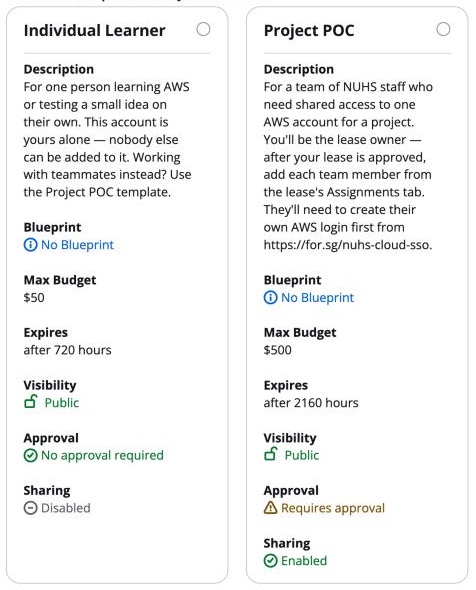
| Individual Learner | One person learning AWS or testing a small idea on their own — this account can't be shared. | US$50 / 1 month | None — ready in minutes |
| Project POC | A project team that needs shared access to one account — the owner adds teammates after approval (see "Working as a team" below). | US$500 / 3 months | GITO Cloud team, usually within one working day |
How to get your sandbox — three steps
Step 1 · Register your login (once only)
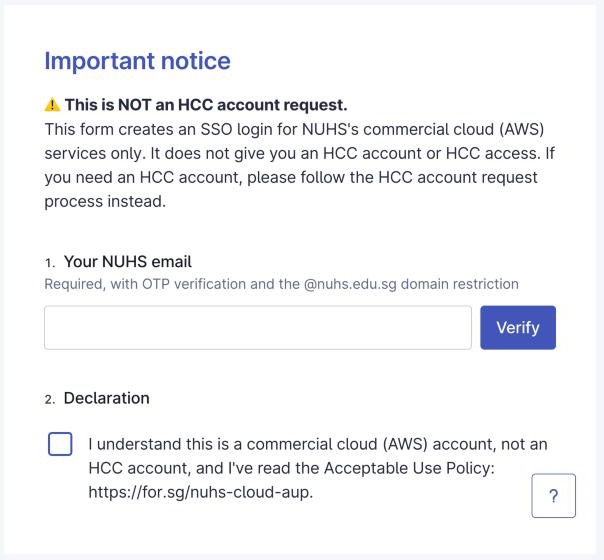
Submit the registration form at for.sg/nuhs-cloud-sso with your own @nuhs.edu.sg address: verify your email with the one-time code, tick the declaration and submit. Your login is created automatically and you get a welcome e-mail from sso@nuhs.cloud within a few minutes. Each person registers their own login. Already have one? Skip to Step 2.
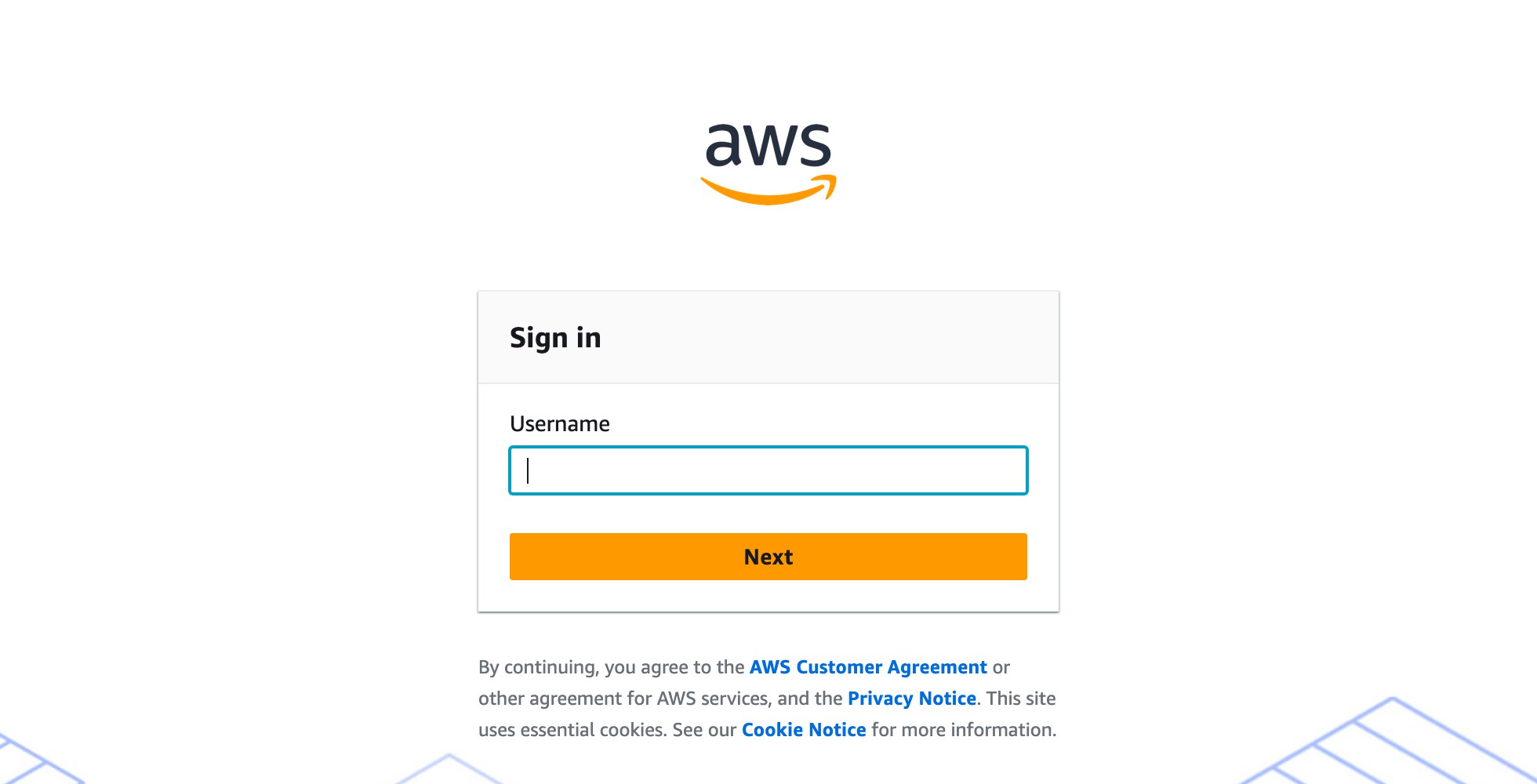
Then activate your login at the AWS access portal, for.sg/nuhs-cloud-login: enter your e-mail and choose Next, enter the one-time code AWS e-mails you (from no-reply@signin.aws), scan the QR code with an authenticator app (Microsoft Authenticator, Google Authenticator, Duo or Authy), then set your password. This only happens once.
Step 2 · Request a sandbox
Open the sandbox portal at for.sg/nuhs-poc-sandbox — you're signed in straight away with the same login. Choose Request lease, pick Individual Learner or Project POC, describe what you'll test and why, and accept the terms of use. An Individual Learner account is ready in minutes; a Project POC request is reviewed by the GITO Cloud team and you're notified by e-mail.
Step 3 · Open your AWS account
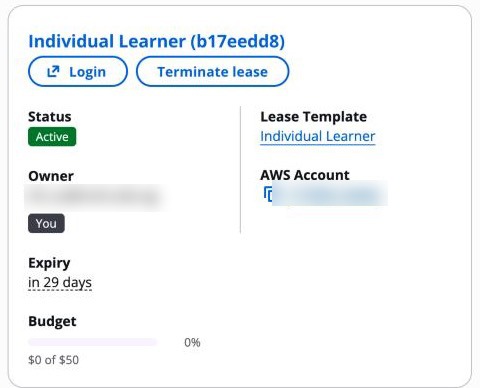
When your lease shows as Active on the portal home page, choose Login. The AWS console of your sandbox account opens.
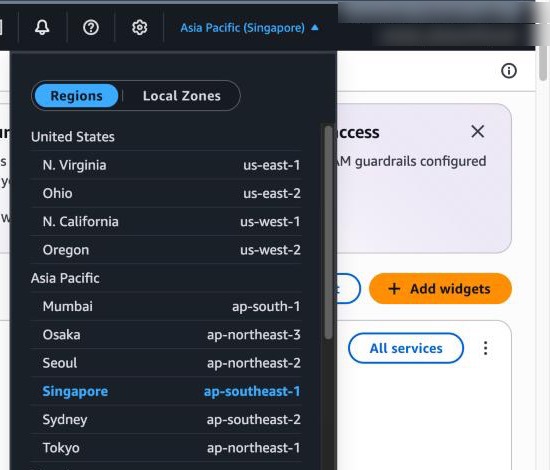
Before you build anything, switch the console region (top right) to Asia Pacific (Singapore) ap-southeast-1. It's the only region allowed; anything you try to create in another region is blocked and looks like a permissions error.
While you work — know what each budget alert means
| Budget reached | What happens |
|---|---|
| 50% | E-mail alert only. Nothing changes — just a heads-up. |
| 75% | E-mail alert only. Time to start wrapping up or plan to export your work. |
| 90% | E-mail alert: your last warning. Your account still works, but export anything you want to keep now, and ask the GITO Cloud team before it runs out if you need more budget. |
| 100% | All resources are PERMANENTLY DELETED. This is automatic and irreversible — nothing survives, no snapshots, no exceptions. |
Your end date works the same way: you get reminder e-mails 7 days and 1 day before it, and on the end date the account is wiped.
- Shut down what you're not using (especially GPU instances, NAT gateways, RDS) — budget spent on idle resources is budget you lose.
The golden rules
- No real patient or NUHS data — ever. Synthetic and public datasets only.
- No production workloads; nothing real may depend on your sandbox.
- No connections to NUHS networks or systems.
- Don't share your login — it's still tied to you personally, and never to be handed to anyone else. Every teammate needs their own login. Your sandbox account is different: on a Project POC lease you add named teammates so the team works inside one shared account — see "Working as a team" below.
- Full policy: the NUHS Commercial Cloud Acceptable Use Policy, plus the sandbox terms you accept with each lease request — breaches end your lease immediately.
Working as a team
A project team can work inside one sandbox account. One person (the lease owner) requests it; teammates are then added to that lease and get the same console access (they can't end the lease or change its budget or duration).
- Everyone gets a login. Each teammate who doesn't have one yet submits the SSO account registration form at for.sg/nuhs-cloud-sso with their own @nuhs.edu.sg address.
- Everyone activates. Each teammate follows their welcome e-mail to finish the one-time first sign-in. A brand-new login can take up to an hour to show up in search.
- The owner requests a Project POC lease at for.sg/nuhs-poc-sandbox and waits for approval.
- Once the lease is Active, open it (Leases → your lease) and go to the Assignments tab.
- Search for them by their @nuhs.edu.sg e-mail (or a whole Identity Center group, if everyone in it should have access) and choose Add.
- Choose Save changes. Their status moves from Pending to Active, and they get an e-mail once access is live.
Once added, they'll see your account under a "Shared with me" view when they log in, and can access it the same way you do. (If your lease is on the Individual Learner template, sharing isn't available — that account stays yours alone.)
Need more time or budget?
It depends on whether your lease has already expired:
- Still Active? Contact the sandbox team before it expires and ask to extend the duration or raise the budget. This updates your existing lease — same account, nothing to redeploy.
- Already expired? Extension is no longer possible — the account has already gone through cleanup. You'll need to submit a brand-new request, which issues a different account. Export your templates/scripts before a lease ends so you can redeploy quickly on the new one (a good POC habit anyway!).
Either way, ending or losing a lease does not delete your login — you keep the same Identity Center account and can request a new lease whenever you need one.
Questions or problems?
Contact the sandbox team at nuhs_gito_cloud@healthgrp.com.sg for: adding teammates, extension advice, suspected account compromise, or anything unclear in the policy.